The Tartan Grid Properties view
The Tartan Grid Properties view contains three tabs:
Each contains a set of properties with a gray background. These properties are required.
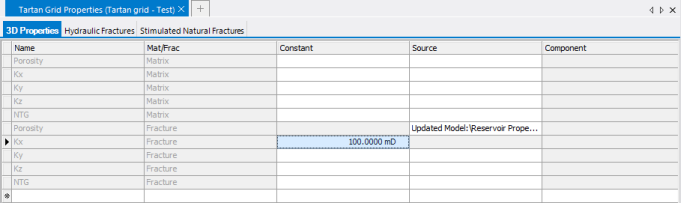
3D Properties tab click to enlarge
Enter a fixed value for a property in the Constant column or select a property in the Source column (right click in the entry field). You can select properties of the selected source grid or of the tartan grid. If you select the Filter source by property type option in step, only properties with the relevant property type are available.
To add a property, click in the empty bottom Name field and select a property from the list. Add all properties you need in the simulation.
To assess different fracture definitions you create different tartan grids. For each tartan grid you complete a Tartan Grid Properties Table. You do not need to reenter all values for each tartan grid. Instead, copy and paste data from one Tartan Grid Properties Table to another. Ensure that you copy the correct values to the correct properties.

Hydraulic Fracture tab click to enlarge
The Hydraulic Fractures table lists all fractures that belong to the fracture definition of the selected tartan grid. You can edit the Width and Permeability.
Stimulated Natural Fractures tab

Simulated Natural Fractures tab click to enlarge
The table on the Stimulated Natural Fractures tab lists all fractures that belong to the fracture definition of the selected tartan grid. For explicit fractures you can edit the Width and Permeability. For implicit fractures you can edit the spacing and the extent to which they contribute to the flow: only in the Stimulated Reservoir Volume, in the Full Field, or not at all.